 FairTally
FairTally help
How to set custom household splits.
Save a household default, record who paid, and see who owes whom. This guide walks through FairTally’s custom split controls with examples for two and three people.
By FairTally · Updated
1. Save the split your household agrees on
You can choose a default split during household setup. To change it later, open Profile → Default Split Settings. Choose one of three methods:
- Equal: everyone gets the same share.
- Percentage: enter whole percentages for each member, totaling 100.
- Ratio: enter positive weights. A 3 : 2 ratio gives the same 60% / 40% split as percentages of 60 and 40.
Check the member names beside the numbers, then select Save Split Settings. A ratio assigns a share of the cost to each person; it does not determine who pays the bill upfront.
For a three-person 50% / 30% / 20% split, choose Percentage and enter 50, 30, and 20, or choose Ratio and enter 5, 3, and 2.
2. Bring a calculator suggestion into the app
If you want a starting point based on take-home income, use the free rent and bill split calculator. Enter incomes for the same month and currency, then select Use income-based suggestion, or choose your own shares.
Select Copy split to copy the result, then open FairTally. Enter the copied app-ready ratio weights in Default Split Settings, matching Person 1, Person 2, and so on to the correct household members. This is a manual handoff; copying a split does not import it into the app.
For positive incomes, use the copied ratio weights to preserve the proportions. When someone has zero income, use the copied whole percentages, which are marked as rounded. Percentage mode permits a zero share; Ratio mode requires positive weights. Review the final numbers together before saving.
3. Record the expense and its payer
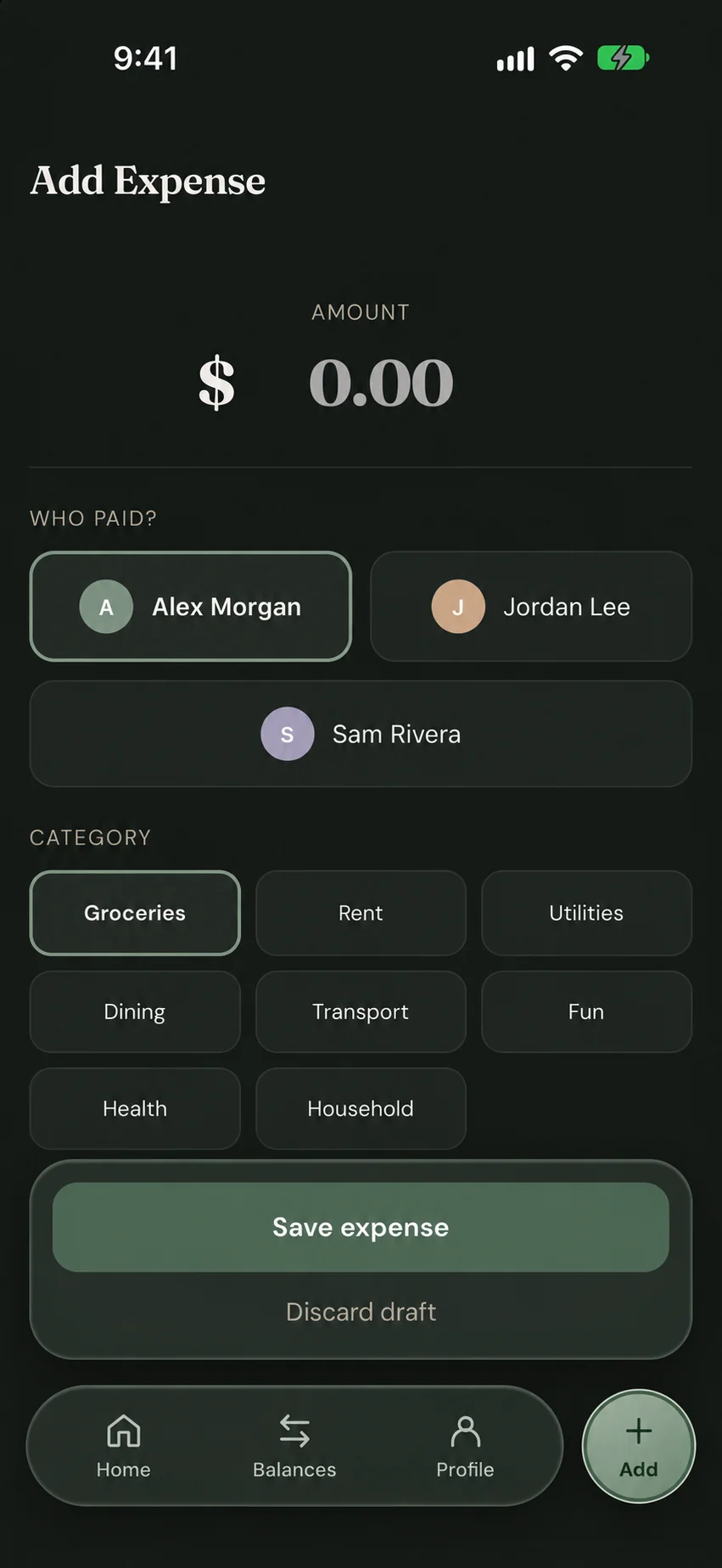
Open Add Expense, enter the amount, choose Who paid?, select a category, and save the expense. The expense uses the household default unless you choose an override.
For an exception, select Change split in the expense's split section. Choose Equal, Percentage, or Ratio for that expense. Reset split returns the draft to the household default.
For example, your normal agreement might be 60/40 for shared bills while a particular dinner is split equally. Review the split when recording that dinner. Saving a default saves the allocation method; it does not schedule recurring bills. Record each bill as it occurs.
Two examples: cost share versus amount paid
A couple splitting $1,000 at 60/40
Alex's share is $600 and Jordan's share is $400. If Alex pays the full $1,000, Jordan owes Alex $400. Alex paying the bill does not change either person's agreed share.
Three people splitting $1,000 at 50/30/20
| Member | Share | Contribution |
|---|---|---|
| Alex | 50% | $500 |
| Jordan | 30% | $300 |
| Sam | 20% | $200 |
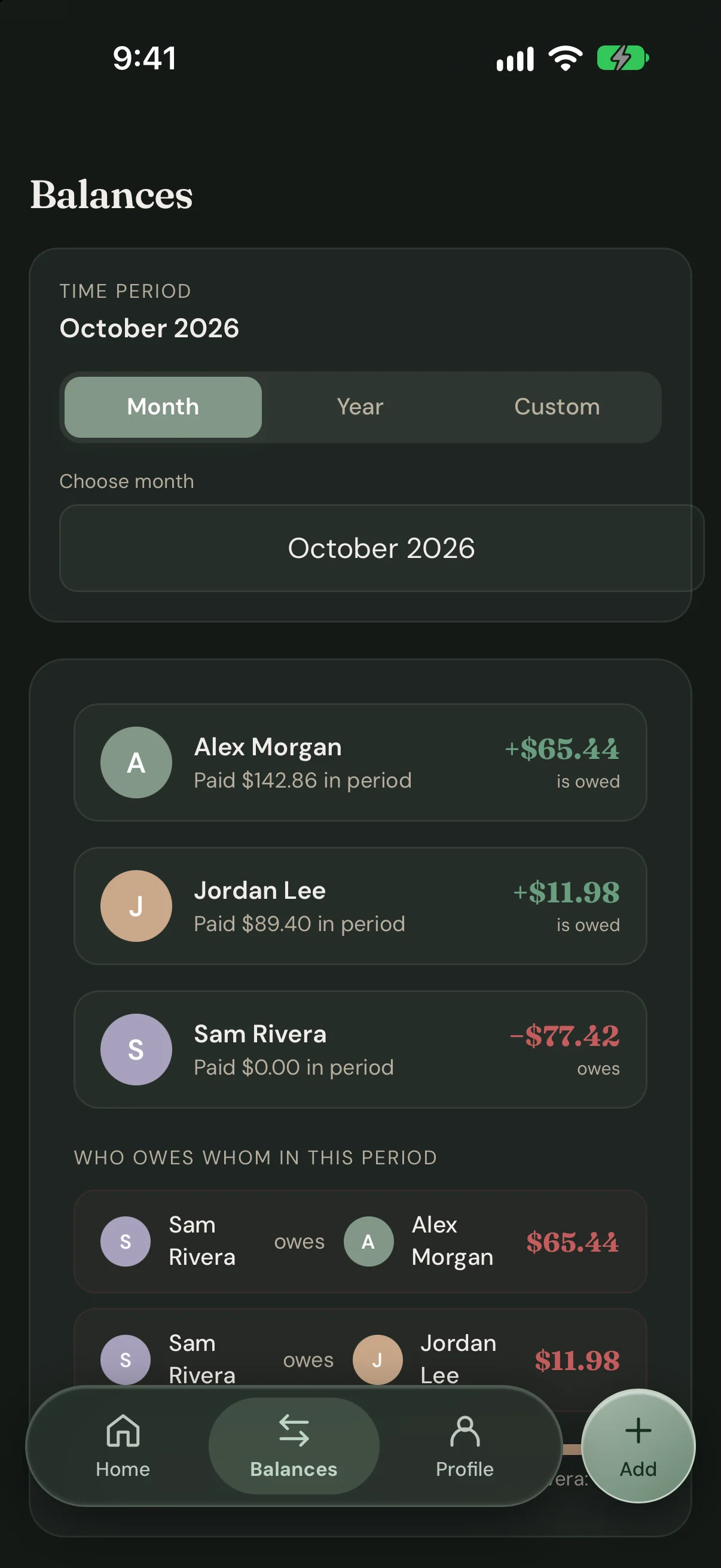
With no other expenses or settlements, Jordan owes Alex $300 and Sam owes Alex $200. When different people pay different bills, the running balances combine those payments with everyone's allocated shares. See a worked example with multiple payers.
4. Review balances and record a settlement
Open Balances to see contributions and who owes whom for the selected period. Check that the period includes the bills you are discussing.
Use Settle Up to record a settlement and update household balances. Arrange the actual payment separately using your chosen payment method; recording a settlement is not a bank transfer.
Revisit your agreement when incomes, responsibilities, or household membership change. The income-based splitting guide explains how to compare an equal split with a proportional one before choosing your default.
Keep your agreement in everyday use
One household. One plan.
FairTally is available on web, iOS, and Android, with no bank linking required. One FairTally Household subscription covers up to 10 members: $5.99/month or $49.99/year.
New households get 14 days of full access from creation, with no credit card required. After the trial, view-only access stays free; a subscription is needed to keep adding and editing expenses.